
Fix Snapchat Photos Timestamp
Snapchat memories export without the original capture date? Restore proper timestamps to every photo and video so they appear in the right order in your gallery.
The Timestamp Problem
When you export your Snapchat memories, the downloaded photos and videos don't contain the original capture date in their metadata. Instead, they show the download date.
All Photos Show Same Date
Every memory appears to be taken on the day you downloaded them, not when you actually captured them.
Wrong Order in Gallery Apps
Apple Photos, Google Photos, and other gallery apps sort by date. Your memories end up out of order.
Lost Timeline
Years of memories lose their chronological context. You can't find photos from specific dates or trips.
Restore Original Timestamps
Our desktop app reads the memories_history.json file included in your Snapchat export. This JSON contains the actual capture dates for each memory.
We automatically match each photo and video to its JSON entry, then write the correct timestamp into the file's EXIF metadata. Your gallery apps can now sort everything correctly.
How to Download Snapchat Memories with Metadata
FixMyExport solves the missing metadata problem by reading your memories_history.json file and embedding all EXIF data directly into each photo and video within couple of seconds. The process takes about 10 minutes for most libraries.
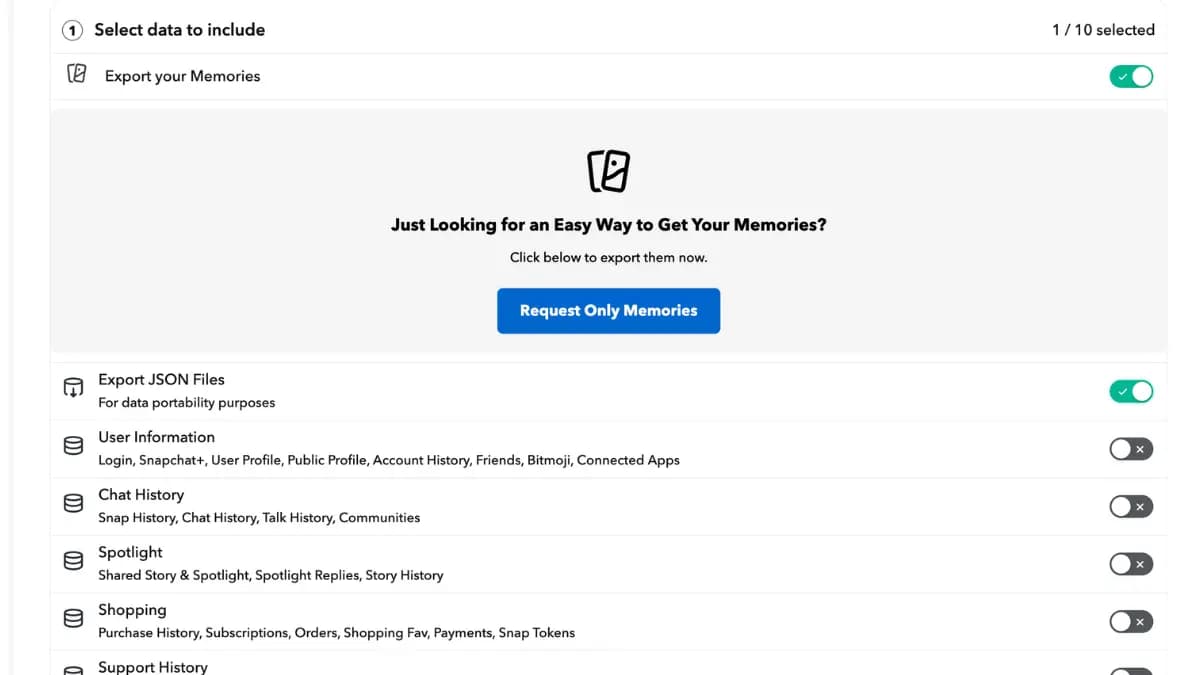
Request Your Snapchat Data Export
Go to accounts.snapchat.com and request your data. You must enable both "Export Memories" and "Export JSON Files" options. Snapchat typically delivers your export within 24-48 hours as a downloadable ZIP file. Extract the ZIP to find your memories_history.json file—this contains all the metadata Snapchat stripped from your files.
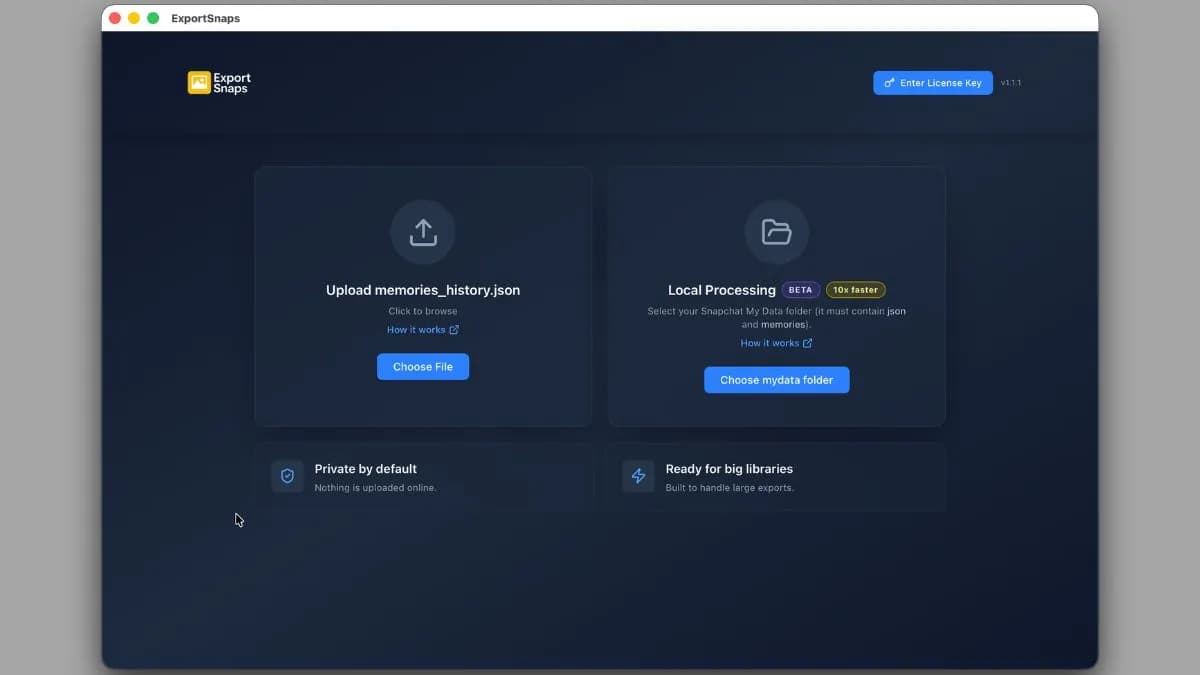
Upload memories_history.json to FixMyExport
Open FixMyExport on your Mac or Windows computer. Drag your memories_history.json file into the app. FixMyExport instantly validates the file and shows you a summary: total file count, how many have location data, estimated download size, and processing time. All processing happens locally on your computer—nothing uploads to the cloud.
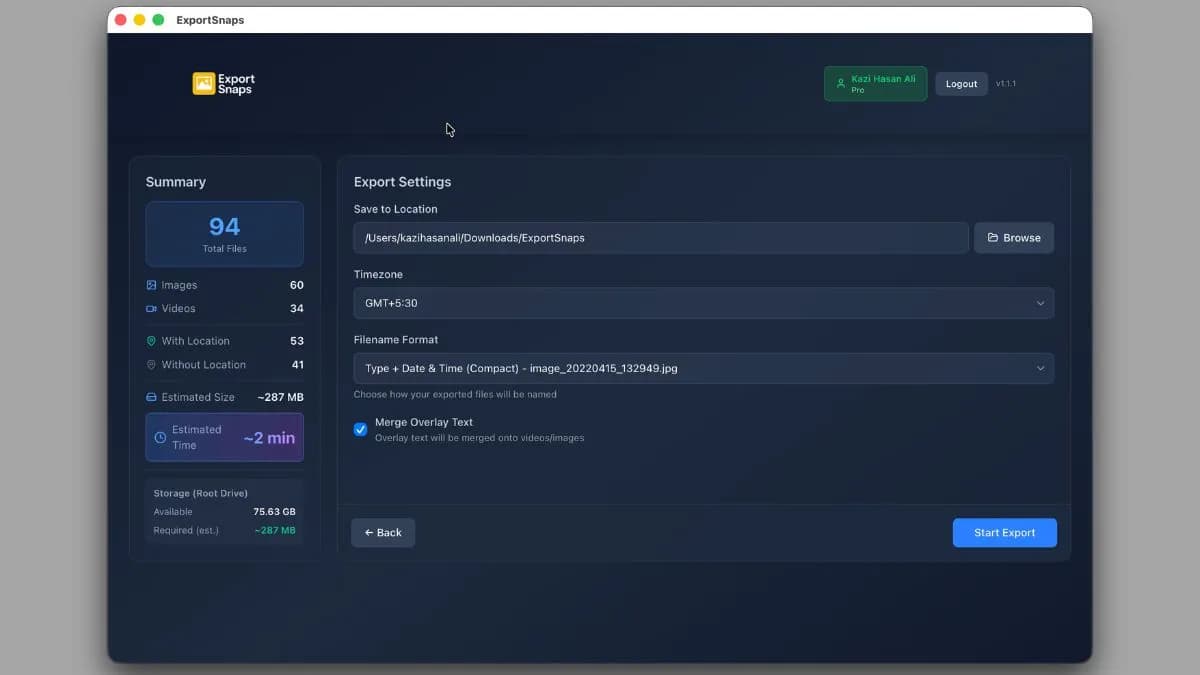
Configure Settings & Start Export
Select your timezone, choose an output folder, and enable options like "Merge Overlay Text" to automatically combine separated text overlays. Click "Start Export" and watch real-time progress. FixMyExport downloads files concurrently from Snapchat's CDN, writes all EXIF metadata, and merges any overlays automatically.
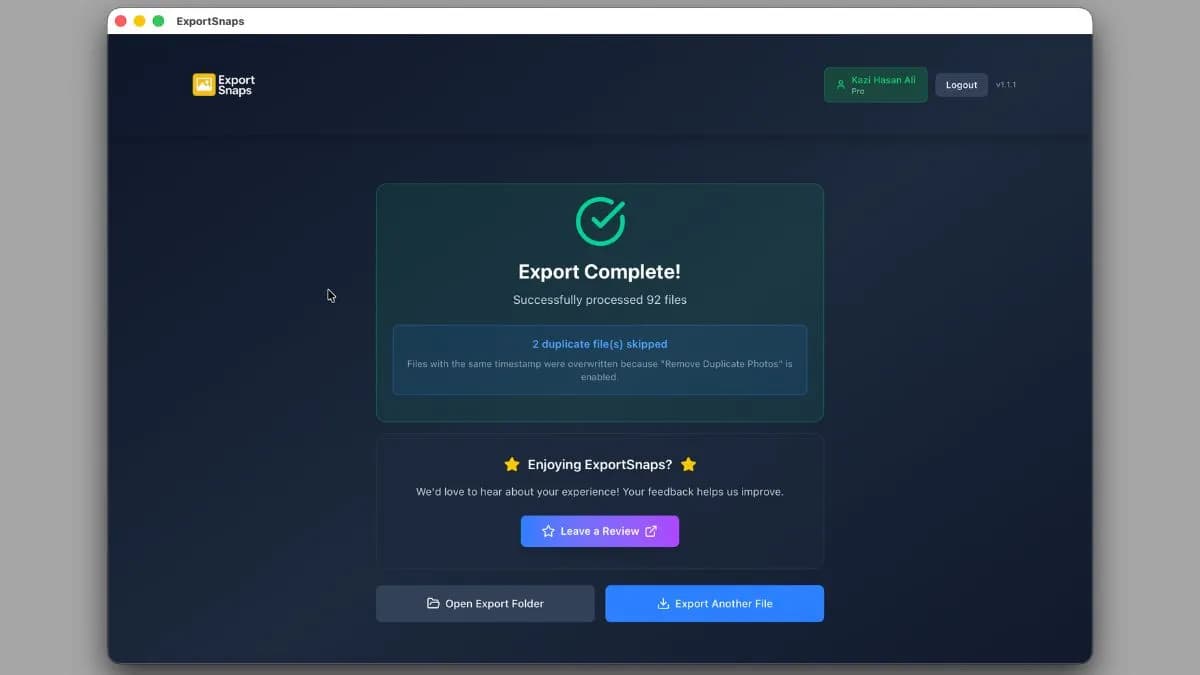
Import Fixed Files to Your Gallery App
Once processing completes, your output folder contains all photos and videos with proper EXIF metadata embedded. Import these files to Apple Photos, Google Photos, or any gallery app. They now sort correctly by actual capture date, appear on map views with GPS coordinates, and work with professional photo editing software like Adobe Lightroom. Your timeline is restored.
Why Fix Your Timestamps?
Correct Chronological Order
See your memories in the actual order you captured them, not when you downloaded them.
Works with All Gallery Apps
Apple Photos, Google Photos, Lightroom, and any app that reads EXIF timestamps.
Search by Date
Find photos from specific dates, months, or years after timestamps are restored.
Batch Processing
Fix thousands of files at once. No manual work required.
Timezone Support
Automatically adjusts for timezone based on GPS data when available.
Safe & Private
All processing happens locally on your device. No cloud uploads.
Frequently Asked Questions
Why do my Snapchat photos show the wrong date?
When you export memories from Snapchat, the files don't include the original capture date in their EXIF metadata. Instead, they show the download date, making all your photos appear as if they were taken on the same day.
How does fixing the timestamp work?
Our desktop app reads the memories_history.json file that comes with your Snapchat export. This JSON contains the original capture dates. We then write this timestamp directly into each photo and video's EXIF metadata so gallery apps display them correctly.
Will this work with Apple Photos and Google Photos?
Yes. Once the EXIF timestamp is fixed, both Apple Photos and Google Photos will automatically sort your memories by the correct capture date. You'll see your timeline restored to how it should be.
Do you upload my photos?
No. Everything runs locally on your computer. Your photos and videos never leave your device. All processing happens offline.
What if I don't have the memories_history.json file?
The JSON file is included when you request a full data export from Snapchat (Settings > My Data > Submit Request). Without this file, the original capture dates aren't recoverable.
How many photos can it process?
Unlimited. We've tested with libraries containing 1,163.34 GB and 64,790 files. The app processes files in batches to handle any size export.
Ready to Fix Your Timestamps?
Download our free desktop app and restore the correct capture dates to all your Snapchat memories in minutes.
Get Started Free