Export your Snapchat Memories in 3 simple steps: download every ZIP from Snapchat, select them all in our app, and get photos with the right dates and GPS.
First, request your complete Snapchat data export including memories_history.json. This process takes 24-48 hours for Snapchat to prepare your files.
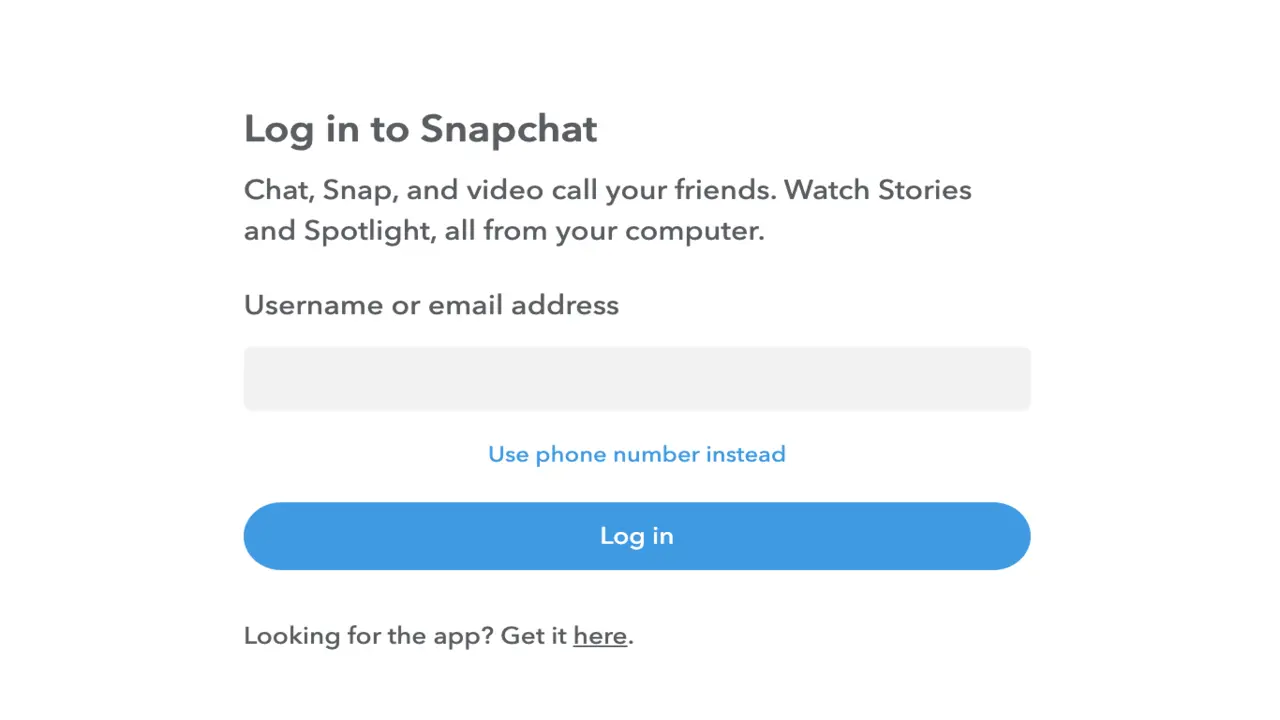
Go to snapchat.com and sign in to your account using your username and password.
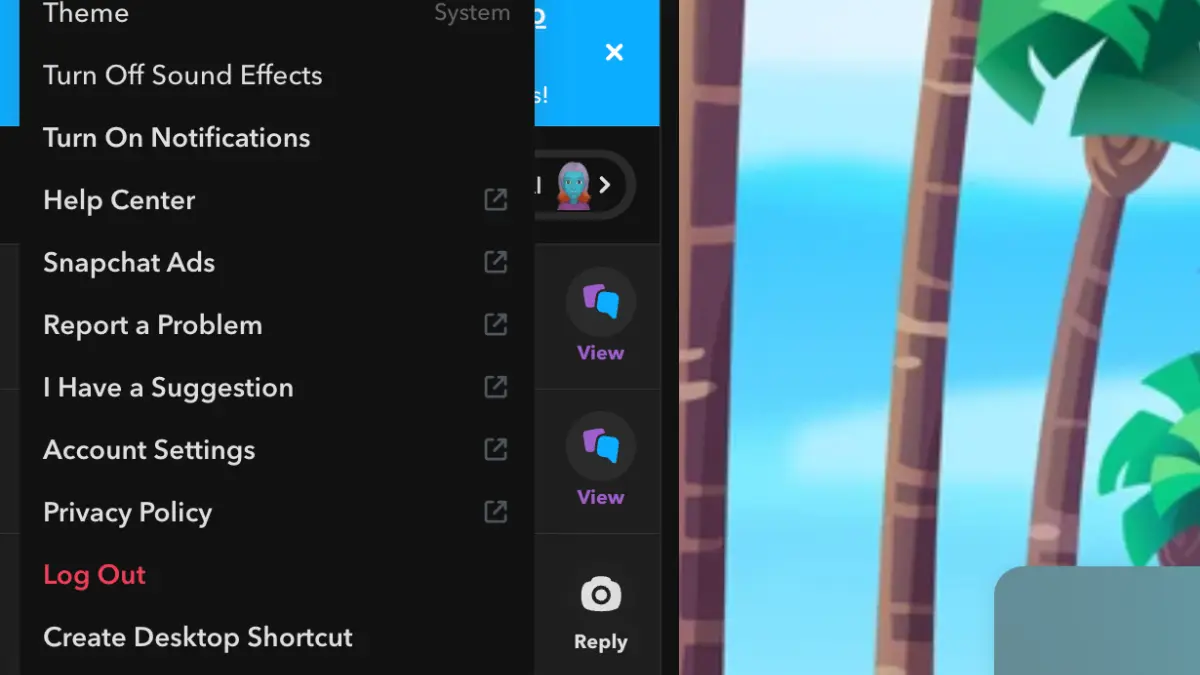
Click on your profile icon, then select 'Account Settings' from the menu to access your account options.
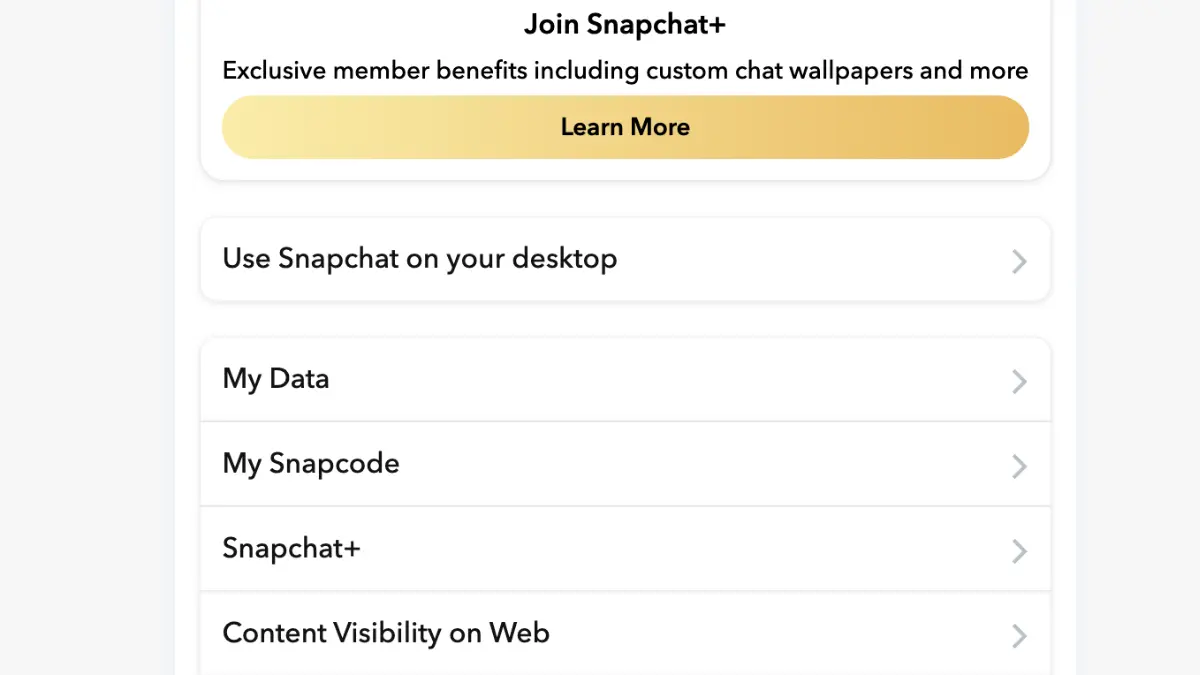
Scroll down to 'My Data' section and click on it. This is where you can request your complete Snapchat data export.
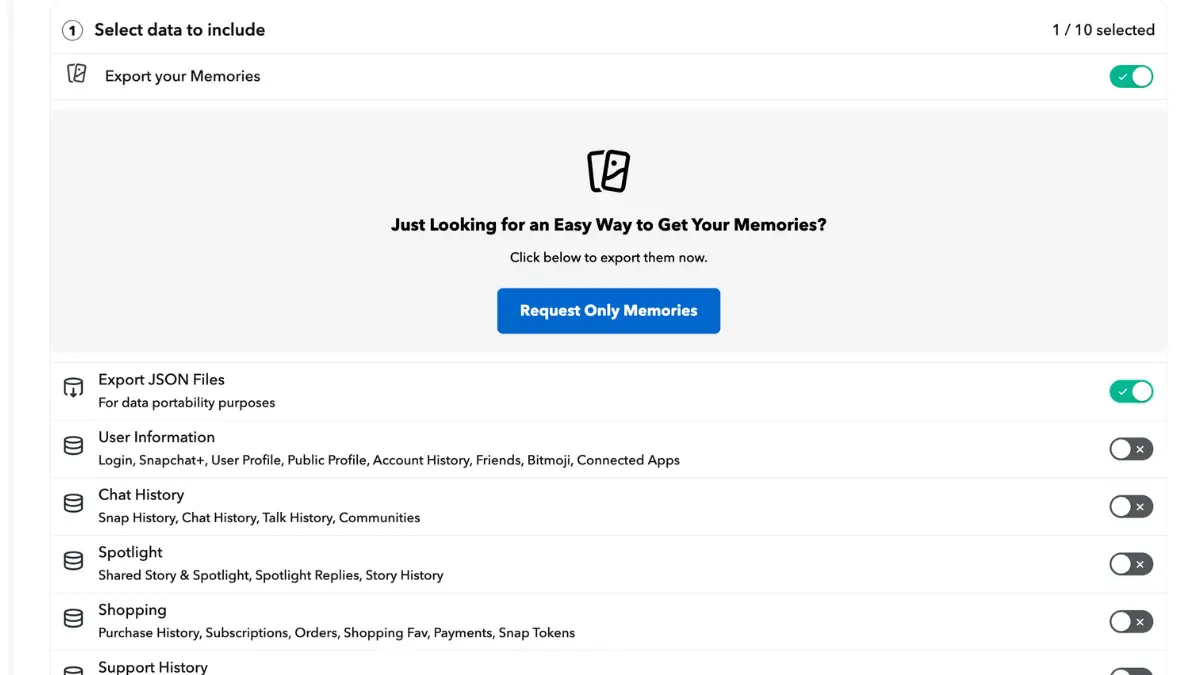
Choose 'Export your Memories' and 'Export JSON Files', select date range 'All Time', confirm your email address, and click Submit. Snapchat will email you when ready (24-48 hours).
Once you receive the email, return to My Data and download all ZIP files. Snapchat may split large exports into multiple downloads - make sure you download every ZIP before moving on.
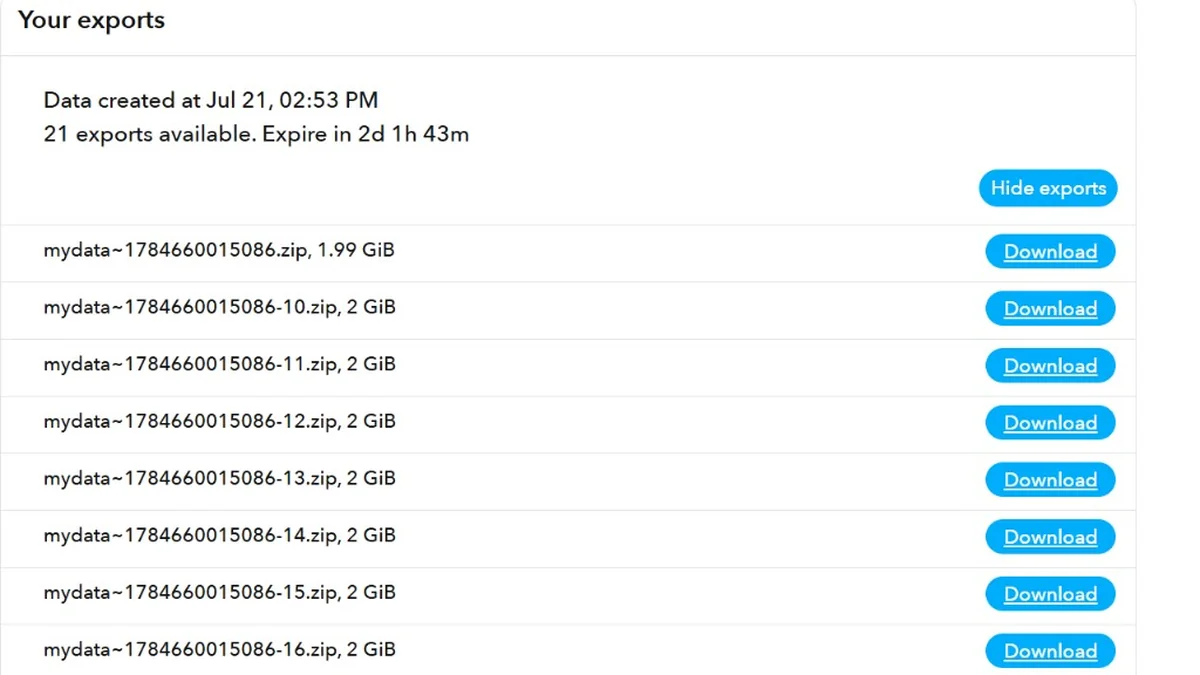
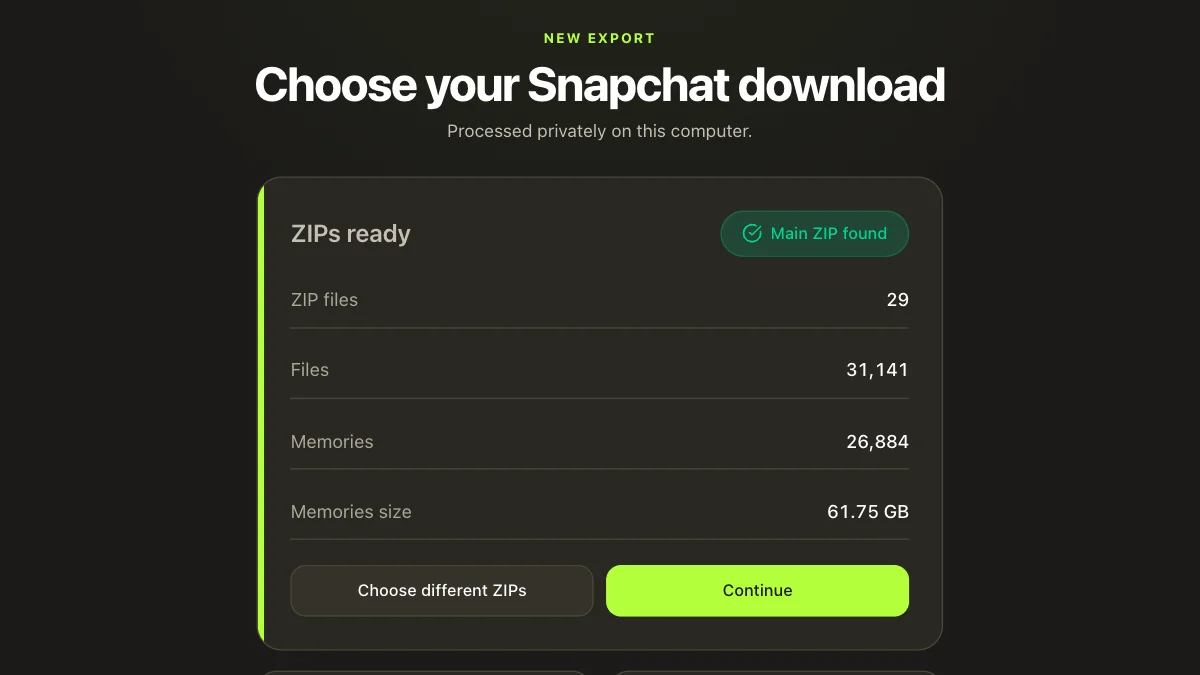
Once your Snapchat ZIPs are downloaded, open FixMyExport, select all of them, and process them on your device. No unzipping needed.
Open FixMyExport, click Choose ZIPs, and select every ZIP Snapchat gave you, such as mydata~123.zip, mydata~123-2.zip and so on. There's no need to unzip them or pick them in any order.
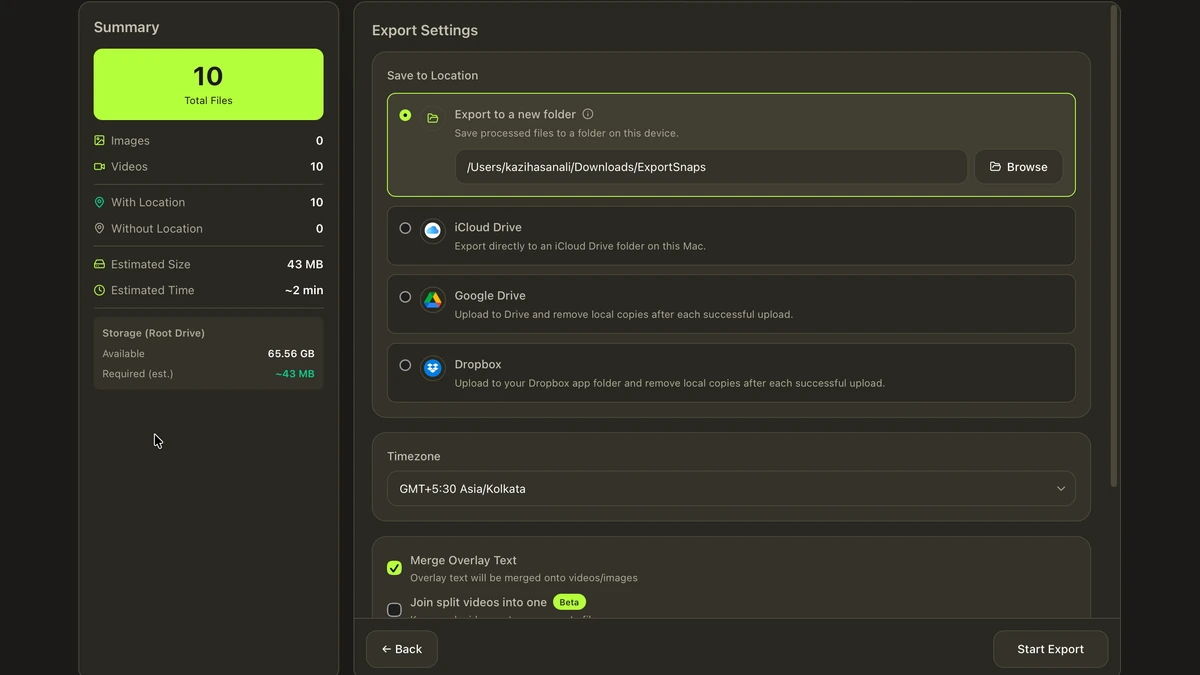
Before you export, choose where your photos should go. Save them to a folder on your computer, or send them straight to Google Drive or Dropbox. The app shows how much free space you need. Tick “Delete each ZIP once processed” to free up space as the export runs.
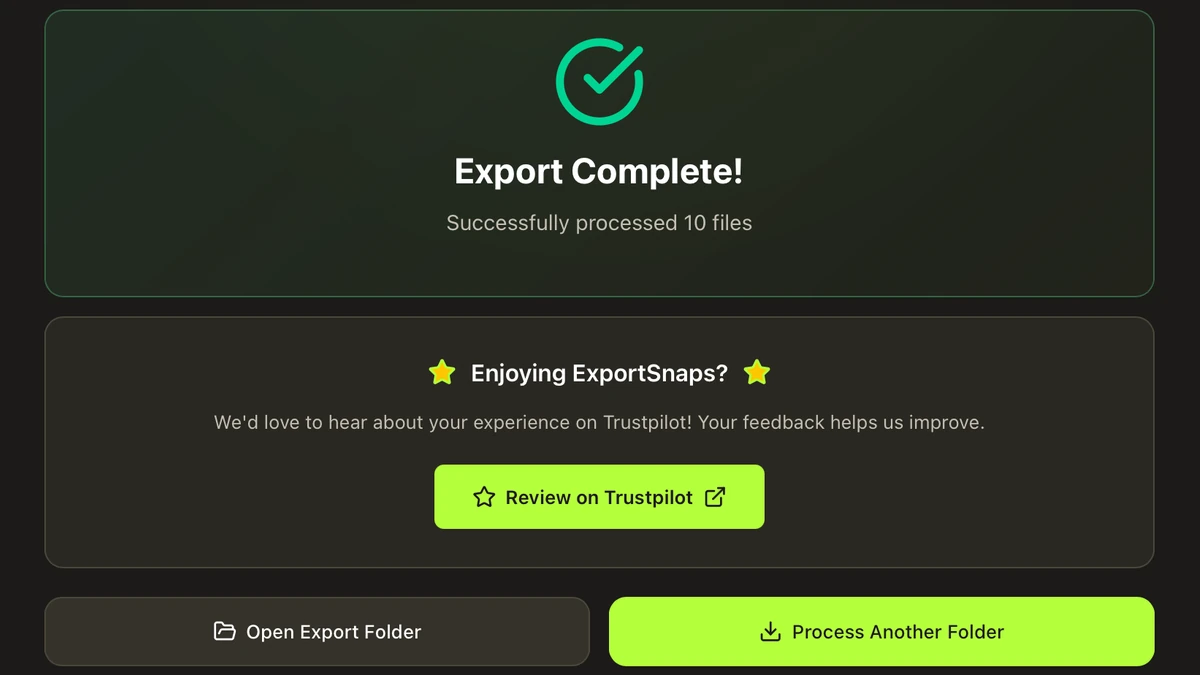
Start export and wait for the progress screen to finish. Date, time, and GPS (when present in the JSON) are written into files where supported. If merge overlay is on, -overlay assets are merged with -main pairs according to your save location choice. The app works through your ZIPs one at a time and cleans up its temporary files as it goes.
Your media is processed on your device and is never uploaded to FixMyExport servers. Cloud exports go to your own connected Google Drive or Dropbox account.
Embeds DateTimeOriginal and GPS coordinates from memories_history.json as standard EXIF tags. Photos sort correctly in Apple Photos, Google Photos, and all gallery apps.
Select all the ZIP files from your Snapchat export, or an unzipped My Data folder. FixMyExport matches the local media with Snapchat's metadata without relying on download URLs.
See progress and results in the app. Interrupted exports do not currently resume and must be started again.
Processes the original media in your Snapchat My Data export. When no overlay is available, the original image or video is exported.
Exported Memories appear on timeline views sorted by date and on map views by location in all major photo apps. Perfect for reliving memories chronologically or by place.
Snapchat takes 24-48 hours to prepare your data export after you request it. Once you receive the download link via email, downloading the ZIP file takes 5-30 minutes depending on your data size. Processing with FixMyExport is instant - typically completing in 2-10 minutes depending on how many Memories you have.
Download every ZIP Snapchat supplies and select them all in FixMyExport; you don't need to unzip them. The app finds the main ZIP containing memories_history.json and reads your photos and videos from the rest. If you have already unzipped your export, you can select the My Data folder instead. Don't select memories_history.json by itself.
FixMyExport does not upload media to FixMyExport servers. Processing happens on your device. Cloud exports use temporary local buffering and are sent to your own connected Google Drive or Dropbox account.
FixMyExport processes the selected My Data export as a whole. It does not currently provide date-range or individual-Memory selection.
Restart the export in FixMyExport. It cannot currently resume from its previous position. If the issue continues, include the exact error, operating system, app version, and support ID when contacting [email protected].
Yes! FixMyExport reads the original timestamps and GPS coordinates from memories_history.json and embeds them as proper EXIF metadata. Your exported photos will sort chronologically in Apple Photos and Google Photos, appear on map views, and display the correct capture date.
FixMyExport shows the space it needs before you start: the size of your memories plus 5 GB of working space. You don't need room for an unzipped copy of your export. Tick “Delete each ZIP once processed” to free space as the export runs, or save to Google Drive or Dropbox so files aren't kept on your device.
You can cancel an export, but pause and resume are not currently supported. Start the export again to continue.
Restore supported dates and GPS, merge separated overlays, rejoin split videos, and export a usable Snapchat library.
Download FixMyExport